Category: News

  • Your Perfect Falkirk Day Trip: Unforgettable Adventures Beyond Edinburgh

    Your Perfect Falkirk Day Trip: Unforgettable Adventures Beyond Edinburgh

    Let’s be honest. When most people plan a trip to Scotland, they think of Edinburgh’s castle, Glasgow’s buzz, or the wild Highlands. I was exactly the same. Falkirk? It was just a name on the map, a town you might pass on the train. That was until a local friend practically insisted I spend a day there. “You’re missing a trick,” she said. And you know what? She was completely right. My day in Falkirk turned out to be one of the most surprising and enjoyable experiences I’ve had in Central Scotland. It’s a place where ancient history, industrial heritage, and mind-blowing modern art collide in the most spectacular way. If you’re looking for an easy, rewarding day trip that packs a real punch, let me tell you why Falkirk should be at the top of your list.

    The Heart-Piece: Experiencing the Falkirk Wheel

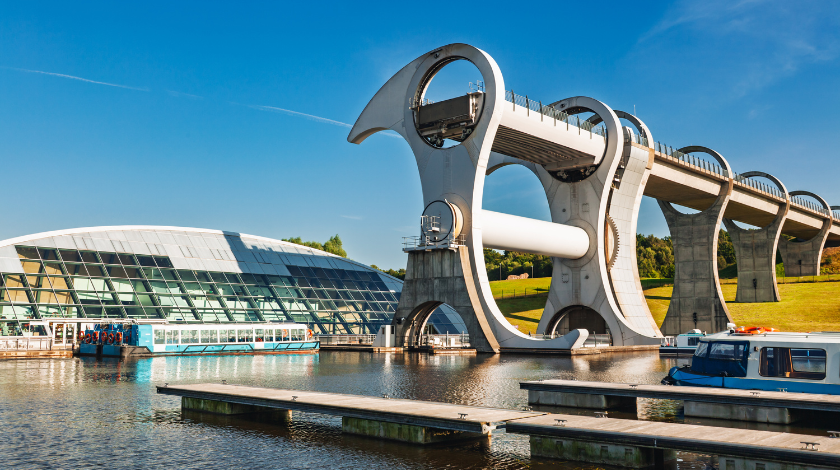
    Your Falkirk adventure almost has to start with its most famous resident: The Falkirk Wheel. I’d seen pictures, but nothing prepares you for seeing it in person. It rises from the landscape like a piece of giant, beautiful scaffolding. But this is no static sculpture; it’s a fully functioning, rotating boat lift – the only one of its kind in the world.

    Here’s the simple genius of it. For centuries, the Forth & Clyde Canal and the Union Canal were linked by a series of 11 locks. It took nearly a full day for a boat to travel up or down. When they decided to reconnect the canals in the 21st century, they didn’t just rebuild the locks. They built this. The Wheel is a monumental piece of engineering that acts like a rotating lift for boats. It picks them up in one of its two giant gondolas, rotates 180 degrees in a beautifully smooth motion, and sets them down on the other canal, a staggering 24 metres higher or lower. The whole process takes about 15 minutes and uses remarkably little energy – in fact, they say it uses about the same power as boiling eight kettles.

    I booked a boat trip that takes you onto the Wheel itself. Gliding into that water-filled caisson is a surreal feeling. The gates close behind you, and slowly, silently, the world begins to tilt. You’re lifted up into the air, getting a stunning panoramic view of the surrounding hills. There’s no jolting, just a gentle, majestic turn. It’s a demonstration of pure physics that feels like magic. The visitor centre does a great job explaining the mechanics, but honestly, seeing it work is the best explanation you can get. Is it worth visiting? Absolutely. It’s not just something to look at; it’s an experience to be part of.

    Mythical Guardians: Meeting The Kelpies at Helix Park

    About fifteen minutes’ drive from the Wheel (or a lovely canal-side walk or cycle if you’re feeling active) lies Falkirk’s other showstopper: The Kelpies. Again, photos don’t do them justice. As you approach The Helix Park, a vast green space designed for community and visitors, you’ll see them from afar. Two horse-head sculptures, each 30 metres tall – that’s as high as a ten-story building – glinting in the Scottish light.

    These aren’t just any horses. They are Kelpies, shape-shifting water spirits from Celtic mythology said to haunt Scotland’s lochs and rivers, often appearing as horses. Artist Andy Scott created them as a monument to the horse-powered heritage of Scottish industry and the mythical creatures of folklore. Up close, their scale is utterly breathtaking. The steel plates they’re made from reflect the sky, turning grey on a cloudy day and glowing fiery gold at sunset. You can walk right between their towering legs and look up into their detailed, powerful faces.

    I visited in the late afternoon, and as the sun dipped, the park lights began to glow. The Kelpies are spectacular during the day, but they become truly ethereal at dusk. There’s a guided tour that lets you go inside one of the heads, which I’d recommend for a unique perspective. The Helix Park itself is a wonderful place to spend a couple of hours. There’s a massive adventure playground for kids, a lagoon for paddle sports, and miles of flat, accessible paths. I grabbed a coffee from the visitor hub and just sat for a while, watching people react to the sculptures with the same awe I felt. It’s a powerful, free-to-view public art installation that has completely transformed this area.

    Walking Through Layers of History

    What really sealed Falkirk for me was discovering that it’s not just about these modern wonders. The town is built on layers of fascinating history, and you can literally walk through it.

    First, there’s the Antonine Wall. Long before Hadrian’s Wall, the Romans pushed north into what is now Scotland and built this frontier. Designated a UNESCO World Heritage Site, it ran right through Falkirk. You can’t see a towering wall here; it was mostly a turf rampart with a deep ditch in front. But at sites like Watling Lodge or Rough Castle, you can still trace the unmistakable line of the ditch snaking across the landscape. Standing there, trying to imagine Roman sentries looking out from a fort into the misty north, gives you a real shiver of connection to the past. It’s a quieter, more reflective experience than the Wheel or Kelpies, but utterly compelling for anyone interested in our ancient past.

    Then, jump forward a few centuries to Callendar House. This is a magnificent stately home set in its own beautiful park. Its story stretches from a medieval tower to a bustling Victorian mansion. What I loved is how alive it feels. Down in the 1820s kitchen, costumed interpreters were baking over an open fire, and the smell of shortbread filled the air. You can explore grand reception rooms and even see a historical exhibit on the life of Antonine Wall pioneer Sir George Macdonald. The park grounds are perfect for a leisurely stroll. It offers a tangible, elegant link to the more recent past, a contrast to the raw ancient history of the Wall and the futuristic feel of the Kelpies.

    Making the Most of Your Visit: Practical, Friendly Advice

    Based on my experience, here’s how to build your perfect day.

    • Getting There & Around: Falkirk is incredibly accessible. Trains from Edinburgh or Glasgow take about 30 minutes and arrive at Falkirk Grahamston station (closer to the town centre) or Falkirk High. The key sites are a bit spread out. The best way is to drive, as parking at both the Wheel and The Helix is ample and cheap. If you’re relying on public transport, local buses (like the number 3) connect the train stations, the town centre, The Kelpies, and the Falkirk Wheel, but check timetables.

    • The Perfect Itinerary: Start at the Falkirk Wheel for a morning boat trip. Have lunch at their cafe or bring a picnic. Then, drive or take the connecting bus to The Kelpies and Helix Park. Spend the afternoon exploring the park and visiting the Kelpies up close. If you have time and energy, finish with a stroll at Callendar House or a section of the Antonine Wall.

    • Tickets: You can see The Kelpies and Helix Park for free. Parking costs a small fee. The Falkirk Wheel boat trip requires a ticket, which you should book online in peak season. Entry to Callendar House has a small charge, but the park is free.

    • What to Wear: This is Scotland, so layers and a waterproof jacket are non-negotiable, even in summer! Wear comfortable shoes – you’ll be doing a lot of walking on mostly flat, good paths.

    Conclusion: The Town That Will Surprise You

    My day in Falkirk completely changed my perception. It stopped being just a name on a map and became a place of vivid memories: the gentle rotation of the Wheel, the colossal shimmer of the Kelpies against a moody sky, and the quiet ditch of a Roman wall. It’s a destination that celebrates human ingenuity – from ancient empire builders to visionary artists and engineers. It’s family-friendly, steeped in history, and visually stunning. So, if you’re crafting your Scottish itinerary and looking for that perfect, manageable day trip that offers something genuinely different, take it from someone who was once a skeptic: give Falkirk a day. You will leave impressed, delighted, and full of stories to tell.

    FAQ About Visiting Falkirk

    Q: Is one day enough for Falkirk?
    A: Absolutely. One full day is perfect to see the main highlights: the Falkirk Wheel, The Kelpies, and one of the historical sites like Callendar House or a section of the Antonine Wall.

    Q: Can you get between the Falkirk Wheel and The Kelpies without a car?
    A: Yes. There’s a dedicated, signposted footpath and cycle path along the canal that connects them (about a 45-minute walk). A seasonal shuttle bus also operates between the two sites, and local public buses (number 3 route) connect them via the town centre.

    Q: Are The Kelpies free to visit?
    A: Yes, seeing The Kelpies in the park is completely free. You only need to pay for parking at The Helix Park and if you choose to take the guided tour inside one of the sculptures.

    Q: What is the best time of day to see The Kelpies?
    A: They are impressive any time! However, late afternoon or dusk is particularly magical when they are illuminated. Sunny days make their steel plates shine brilliantly.

    Q: Is the Falkirk Wheel worth the ticket price?
    A: If you have any interest in engineering, unique experiences, or just want to see something truly remarkable, yes. The boat trip is a hands-on, memorable activity that explains the landmark better than any observation deck could. For those on a tight budget, you can view the Wheel operating from the visitor centre for free.

    Q: Is Falkirk good for kids?
    A: Extremely. The Falkirk Wheel is like a giant toy, The Helix Park has one of the best playgrounds in Scotland, and the open spaces are great for running around. The history is presented in a very accessible way at Callendar House.

  • Windows 11 Debloat Guide 2024: Safe Steps to Remove Bloatware & Speed Up Your PC

    Windows 11 Debloat Guide 2024: Safe Steps to Remove Bloatware & Speed Up Your PC

    Have you ever bought a brand-new computer, powered it on, and immediately felt like it wasn’t entirely yours? I have. I remember setting up a shiny new laptop, only to be greeted by a barrage of pop-ups, trial software I never asked for, and a nagging sense that the system was doing more in the background than it needed to. The excitement quickly turned into annoyance. This, in a nutshell, is the “bloat” experience. If you’ve searched for “win11debloat,” you’re likely feeling that same desire for a cleaner, faster, and more private computer. You’re not alone, and the good news is, you have the power to fix it.

    Let’s talk about what debloating Windows 11 really means. It’s not about hacking your system or breaking it. Think of it more like tuning a car. The factory settings are designed to work for everyone, everywhere, under all conditions. Debloating is about adjusting those settings so the car performs perfectly for you and your specific roads. It involves removing pre-installed software you don’t want (often called bloatware), turning off background features that drain resources and collect data, and tweaking settings to prioritize performance and privacy. The goal isn’t to create a bare-bones skeleton of an OS, but a responsive, respectful tool that gets out of your way.

    Why Bother? The Tangible Benefits

    So, why go through the effort? The reasons are more concrete than you might think.

    • Performance: Every application running in the background, even idle, uses a slice of your computer’s memory (RAM) and processor (CPU). Removing unnecessary ones frees up these resources for the programs you actually care about—be it a video game, a design suite, or just having fifty browser tabs open smoothly. On older or less powerful hardware, this can feel like getting a free upgrade.

    • Privacy: Windows 11, by default, is chatty. It collects diagnostic data to “improve your experience.” For many, this level of data collection feels intrusive. Debloating often includes steps to minimize this telemetry, giving you more control over what information leaves your PC.

    • Cleanliness and Control: It’s about the principle. Your computer is a significant investment and a personal space. Having it cluttered with Candy Crush ads, expired antivirus trials, or manufacturer utilities you’ll never use feels disrespectful. Cleaning it up creates a digital environment you’ve consciously curated.

    The Golden Rule: Safety First

    Before we touch a single command, we must talk about safety. The biggest fear—and rightly so—is breaking your system. I learned this lesson years ago when an overzealous cleanup disabled my WiFi driver. It was a hassle to fix. So, here is your non-negotiable pre-flight checklist:

    1. Create a Restore Point: This is Windows’ “undo button” for system changes. Type “Create a restore point” in the Start menu, click on your main drive (usually C:), and hit “Create.” Give it a clear name like “Pre_Debloat.” If anything goes wrong, you can roll back here.

    2. Back Up Important Data: Always have your documents, photos, and important files saved elsewhere, like an external hard drive or cloud service.

    3. Know Your Recovery Options: Familiarize yourself with how to boot into “Advanced Startup” options (Settings > System > Recovery). This is your lifeline if something prevents Windows from starting normally.

    4. Research: Don’t run a random script from a forum you don’t trust. Stick to well-known, community-vetted tools with clear documentation.

    Your Debloating Toolkit: From Manual to Automated

    There are two main paths you can take: the careful, manual method and the more efficient, automated tool-based approach. I recommend beginners start with a bit of both.

    The Manual Method: The Built-in Way
    This is the safest place to start. It involves using Windows’ own settings to remove what you don’t need.

    1. Uninstall Apps: Go to Settings > Apps > Installed apps. Scroll through the list. See “Candy Crush,” “Disney Magic Kingdoms,” or “McAfee Security Scan Plus”? Click the three dots next to them and select “Uninstall.” Be ruthless, but be sensible. If you’re unsure what an app is, a quick web search for its name can tell you if it’s critical (like “Windows Web Experience Pack”—keep that) or just junk.

    2. Manage Startup Programs: Open the Task Manager (Ctrl+Shift+Esc), and go to the “Startup” tab. Here, you’ll see programs that launch when you turn on your PC. Disabling heavy ones you don’t need immediately (like OneDrive or a cloud sync service) can significantly speed up your boot time. Right-click and select “Disable.”

    The Tool Method: Community-Powered Efficiency

    For a more thorough job, the community has created excellent tools. My personal go-to for years has been the Chris Titus Windows Utility (readily found on GitHub). Why? It presents a simple, clean menu where you can check boxes for what you want to do: remove specific bundles of apps, disable telemetry, install useful software, and apply common tweaks. It’s a graphical interface that runs well-vetted PowerShell scripts for you. Using a tool like this is like having a expert guide you through the process.

    A Walkthrough: A Conservative First Pass

    If you decide to use a tool, here’s a safe, conservative approach:

    1. Download the tool from its official source (like the GitHub repository).

    2. Run it as an administrator (right-click, “Run as administrator”).

    3. Look for sections labeled “Bloat Removal” or “Disable Features.” You’ll often see presets like “Default,” “Light,” and “Full.” Always choose “Light” or “Default” for your first time. This typically removes only the obvious, safe junk.

    4. In the privacy or tweaks section, you can often disable features like “Cortana,” “Windows Tips,” and “Telemetry” without harming your system.

    5. Let the tool run. It will close and reopen windows—this is normal.

    6. Restart your computer when prompted.

    What Should You Absolutely Keep?

    This is crucial. Some “bloat” is actually important. Do not remove things like:

    • Microsoft Store & Its Frameworks: Many core apps and future updates rely on this.

    • Graphics Driver Packages: Anything with “Intel,” “AMD,” or “NVIDIA” in the name.

    • .NET Frameworks: Essential for many applications to run.

    • Windows Security/Defender components: Your primary antivirus protection.

    The Results and The Reality

    After a light debloat, don’t expect your Pentium to run like a Ryzen 9. The gains are often subtle but meaningful: a few hundred megabytes more free RAM, a desktop that appears a second or two faster after login, fewer notifications vying for your attention, and a task manager with a shorter, more understandable list of processes. The feeling of a decluttered, purposeful system is, for me, the greatest benefit.

    Maintaining Your Streamlined System

    Debloating isn’t a one-and-done deal. Windows Update will occasionally reintroduce some apps or reset some settings. Get into the habit of checking your “Installed apps” list after a major update. It takes two minutes and helps maintain that clean feel.

    Final Thoughts: Is It Worth It?

    If you are technically curious, value privacy, and want to squeeze every bit of performance from your machine, then yes, debloating Windows 11 is absolutely worth it. Start slow, be cautious, and always have a way back. The process empowers you to understand your computer better and mold it into a tool that truly works for you, not for the software vendors pre-installed on it. It transforms your PC from a generic appliance into a personalized command center.

    Conclusion

    Debloating Windows 11 is a practical and rewarding process for any user feeling constrained by pre-installed software and default settings. By taking a careful, informed approach—starting with manual removal and optionally progressing to trusted community tools—you can significantly enhance your system’s responsiveness, improve your privacy, and create a computing environment that reflects your needs, not the manufacturer’s. Remember, the core principle is control: making conscious choices about what runs on your machine. With the safety nets of restore points and backups in place, you can confidently explore these tweaks and enjoy a cleaner, faster Windows experience.

    Frequently Asked Questions (FAQ)

    Q1: Does debloating Windows 11 void my warranty?
    A: No. Removing software applications does not void your hardware warranty. You are not modifying the BIOS or doing anything to the physical components. However, if you need to send your PC in for service, creating a fresh restore point or reinstalling Windows from official media (which restores all bloat) is a good practice.

    Q2: Can I debloat Windows 11 without third-party tools?
    A: Absolutely. You can achieve a lot manually through Settings > Apps and the Task Manager’s Startup tab. This is the safest method and is perfect for a light cleanup. Tools simply automate and expand upon this process.

    Q3: What is the most common mistake people make when debloating?
    A: The most common mistake is being too aggressive and removing system components they don’t understand, which can break features like the Start Menu, Search, or WiFi. This is why starting with a “Light” preset in tools and always creating a restore point is critical.

    Q4: Will debloating break Windows Update?
    A: If you stick to removing consumer apps and disabling non-essential services, it should not break Windows Update. However, some advanced scripts offer aggressive options that can interfere. Always use well-documented tools and avoid options that explicitly warn about update functionality.

    Q5: How do I get back an app I removed by mistake?
    A: The easiest way is to open the Microsoft Store, search for the app name (like “Your Phone” or “Mail and Calendar”), and reinstall it. If it’s not available there, you can use your system restore point to revert to the state before you ran the debloat tool.

  • Leakedzone Explained: What It Is and Why You Must Protect Yourself

    Leakedzone Explained: What It Is and Why You Must Protect Yourself

    Have you ever typed your email into one of those “have I been hacked” websites, felt a pang of anxiety, and then wondered where that data actually goes? I know I have. A few years back, a major website I used got breached, and my old password was floating around. A tech-savvy friend muttered, “It’s probably on something like Leakedzone,” and that was the first time I heard the name. It sounded like a digital badland, a place you shouldn’t visit but couldn’t help being curious about. That curiosity is natural. We live in an age where our personal information is a valuable, and often vulnerable, currency. Today, I want to talk plainly about what Leakedzone represents, not to guide you there, but to arm you with the knowledge to protect what matters most—your digital self.

    Let’s be clear from the start. This article is not a manual or an endorsement. It is a warning and a guidepost. My goal, based on years of writing about online safety and digital ethics, is to demystify these shadowy corners of the web so you can make informed, safe decisions.

    What Exactly is Leakedzone?

    In the simplest terms, Leakedzone is a website, often structured as a forum, that acts as a repository and discussion board for leaked or stolen data. Think of it as a crowded, unregulated digital bazaar where databases from hacked companies, login credentials from old breaches, and sometimes even personal information gathered from malware are uploaded, shared, and dissected by users.

    The “zone” in its name is fitting. It exists in a specific zone of the internet that is publicly accessible but morally and legally ambiguous. The content isn’t typically found through a simple Google search, but it’s not on the hidden “dark web” requiring special browsers either. It sits in that uncomfortable in-between space. The data found there can range from millions of email and password combinations from a past breach of a major retailer to more sensitive and targeted information. Its primary function is sharing, and that act of sharing stolen property, even digitally, is where the core problem lies.

    The Tangible Dangers: More Than Just Curiosity

    Visiting a site like Leakedzone isn’t like innocently browsing a sketchy blog. The risks are immediate, multifaceted, and can have real-world consequences. Let’s break them down, because understanding the “why” behind the warning is crucial.

    First, you are walking into a digital minefield of malware. These sites are often funded by deceptive advertisements and pop-ups that are engineered to infect your device. One wrong click—even on what looks like a “close” button—can lead to your computer being infected with viruses, ransomware, or keyloggers that record every keystroke you make, including your banking passwords. I’ve helped friends clean up after such infections, and it’s a stressful, time-consuming process that often starts with, “I was just looking at something out of curiosity.”

    Second, you are exposing yourself to legal liability. In many jurisdictions, simply accessing stolen data, regardless of your intent, can be a criminal offense. You are knowingly entering a platform that traffics in the digital fruits of crimes (hacking, theft). Law enforcement agencies monitor these spaces. While they may be after the big fish—the uploaders and administrators—your digital footprint (your IP address) is now in a place associated with criminal activity. It’s a risk with no possible reward.

    Third, and perhaps most importantly, there is the profound ethical violation. The data on these forums represents real people. Those email and password pairs belong to someone’s grandmother, a young student, or a professional like you or me. This isn’t abstract information; it’s personal property that was taken without consent. By visiting and browsing these leaks, even passively, you are participating in an ecosystem that commodifies personal violation. It normalizes the idea that our digital identities are just bundles of data to be traded.

    The Right Way to Check for Breaches

    Now, I understand the genuine concern. You want to know if your data is out there. That is a responsible instinct. The critical difference is in how and where you check. Instead of venturing into risky forums, use legitimate, secure, and ethical services designed for this exact purpose.

    The most trusted name in this space is Have I Been Pwned (HIBP), created by security expert Troy Hunt. I use it myself and recommend it to everyone. You enter your email address, and it checks against a massive database of known, public breaches. The key distinctions are vital: HIBP gathers data from breaches that are already publicly circulated, it does not host stolen databases in their raw form, and its entire mission is to inform and protect users, not to facilitate further exploitation. Other legitimate options include Firefox Monitor (which is powered by HIBP’s data) and services from reputable password managers like Bitwarden or 1Password, which have built-in breach monitoring. These tools turn a reactive fear (“Am I on Leakedzone?”) into a proactive, safe alert system.

    Building Your Digital Fortress: Proactive Protection

    Knowing about a breach is step one. The real power lies in what you do next. Let’s move from awareness to action. If the idea of your data being somewhere it shouldn’t be worries you, here is your practical, long-term defense plan.

    Your password strategy needs a complete overhaul. If you are using the same password, or even slight variations of it, across multiple websites, you are extremely vulnerable. A breach from an old forum you forgot about can become the key to your current email or social media. The solution is two-fold. First, start using a password manager. This software generates and stores complex, unique passwords for every site you use. You only need to remember one strong master password. It is the single most effective security upgrade you can make. Second, wherever possible, enable two-factor authentication (2FA). This adds a second step to your login—usually a code from an app like Google Authenticator or Authy, or a physical security key. Even if a password is leaked from a place like Leakedzone, 2FA stops the hacker in their tracks because they don’t have that second piece of the puzzle.

    Adopt a mindset of healthy skepticism. Be cautious of phishing emails that try to trick you into logging into fake sites. Check the sender’s address carefully and never click on urgent “security alert” links in emails; instead, go directly to the website by typing the address yourself. Keep your software and devices updated, as these updates often patch critical security holes. Think of your online presence as a house. A password manager gives you unbreakable locks, 2FA adds a security alarm, and software updates keep the walls strong. Visiting a site like Leakedzone, in this analogy, is like leaving your front door wide open in a dangerous neighborhood just to see what happens.

    Conclusion: Choosing the High Road

    The digital world is vast, with both wonderful resources and dangerous corners. Leakedzone and sites like it represent the latter—a symptom of a broader problem of data exploitation. Our curiosity about them is understandable, but acting on that curiosity by visiting is undeniably risky and ethically questionable.

    The path forward is not in lurking in these murky zones, but in shining a light on safe practices. Empower yourself with legitimate tools like Have I Been Pwned to stay informed. Invest time in building strong security habits with password managers and two-factor authentication. By doing this, you move from being a passive potential victim to an active guardian of your own digital life. Your data is worth more than just being a line in a leaked text file on a forum; it’s the key to your online identity, and it deserves the strongest protection you can give it.

    Frequently Asked Questions (FAQ)

    Q1: Is it illegal just to visit Leakedzone?
    A: The legality varies by country and jurisdiction, but in many places, yes, it can be. Accessing a website known for hosting stolen property (data) can be construed as unauthorized access to computer material or receiving stolen goods. The legal risk is significant and not worth taking.

    Q2: What’s the difference between Leakedzone and Have I Been Pwned?
    A: This is the core distinction. Leakedzone is an uncontrolled forum that hosts and shares the raw stolen databases, often facilitating further crime. Have I Been Pwned is a controlled, ethical service that uses such data solely to alert individuals that their information was in a publicly available breach, without providing the actual stolen files. HIBP is a security tool; Leakedzone is part of the security problem.

    Q3: If my data is on Leakedzone, what should I do immediately?
    A: Don’t panic and do not visit the site. First, change the password for the affected service and for any other account where you used the same password. Enable two-factor authentication on all important accounts (email, banking, social media). Consider using a password manager to ensure all your future passwords are strong and unique.

    Q4: Are there any safe “Leakedzone alternatives”?
    A: For checking if your data was in a breach, use safe alternatives like Have I Been PwnedFirefox Monitor, or your password manager’s breach scan. There are no “safe” alternatives that provide the same raw, stolen data as Leakedzone, because the act of providing that data is inherently unsafe and unethical.

    Q5: How do companies’ leaked data end up on such forums?
    A: Usually through data breaches. Hackers exploit security weaknesses in a company’s systems, steal customer databases (emails, hashed passwords, sometimes more), and then release or sell them. These files are then circulated and often end up on forums like Leakedzone for wider distribution within the cybercriminal community.